Taking NATE Online
We have recently begun teaching our NATE classes online using zoom format. This article will hopefully clear up some of


You have a commercial building with multiple roof top units (48/50LC) and the Test & Balance Company is telling you they can’t adjust the air flow. The units have RTU-Open control board installed from the factory with a third-party Control Company. So, what do you do?
With an Equipment Touch (part# EQT1-4-CAR) and some 18-4 stranded thermostat wire you will be able to access the RTU-Open board and make changes to the airflow setting. Let’s get started.
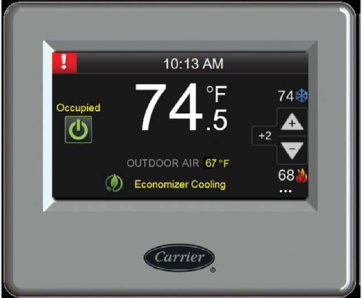
The Equipment Touch requires 24 vac for power (this can wired to R & C on the CTB located in the control section of unit) and two wires for communication to the RTU-Open board. See below:
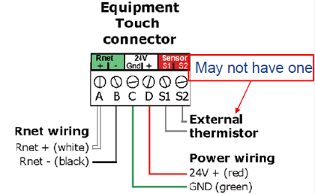
You will wire C on the Equipment Touch connector to C on the CTB, wire D on the Equipment Touch connector to R on the CTB.
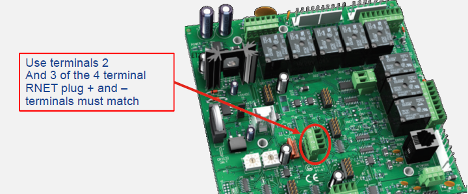
Wire A positive to terminal 2 on RTU-Open board Rnet port and B negative to terminal 3 on RTU-Open board Rnet port. See below:
Once you have all wiring done, power up unit. The Equipment Touch will boot up and have a display. This takes a few seconds. Once this is done, the Equipment Touch will display Standby Screen, as shown below.
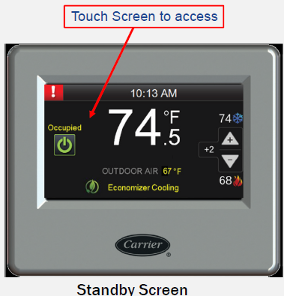
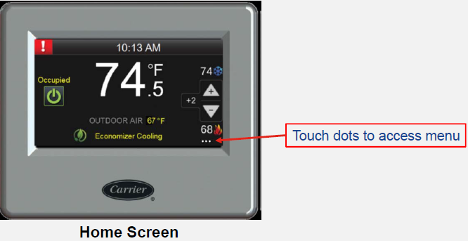
Just touch the Screen to access the Home Screen.
Touch the three dots in the lower right-hand corner to access the login screen. As shown below.
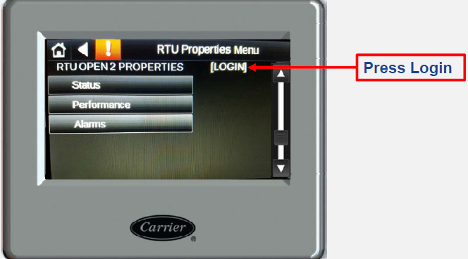
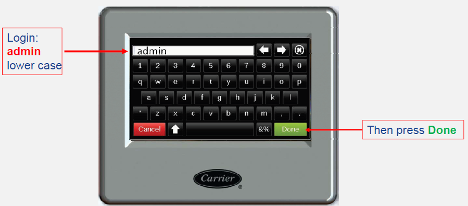
Now press LOGIN and enter admin (all lower case) as the password. Then press Done to enter the configuration menus.
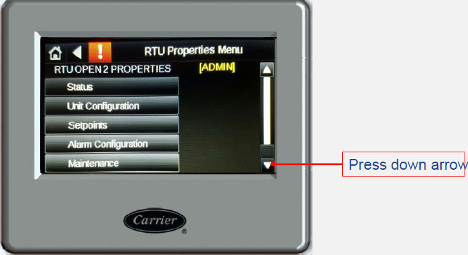
Once you have pressed done, the Equipment Touch will display this screen. You will then press the arrow down until you see Service Config tab.
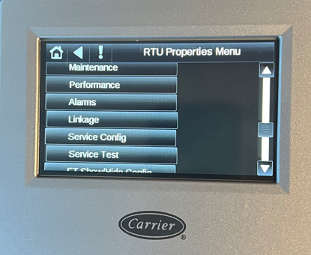
Then you will touch the Service Config tab and it will display the screen below.
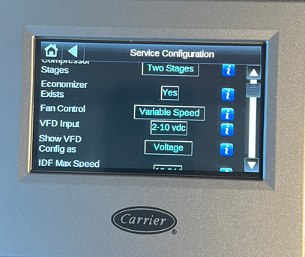
At this time, you will need to ensure that the VFD Input is set to 2-10vdc, to make a change just touch the box and highlight the correct choice. Next ensure that the Show VFD Config is set to Voltage, to make a change just touch the box and highlight the correct choice. Next touch the down arrow until you see the following on the screen
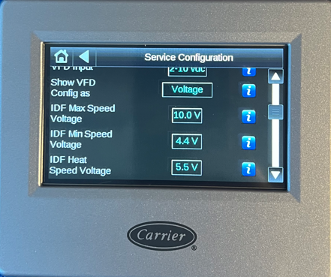
There are three speed settings, Indoor Fan (IDF) Max Speed Voltage, IDF Min Speed Voltage and IDF Heat Speed Voltage. You set these settings by entering a voltage value. Higher the voltage value faster the speed of the IDF. For an example, the IDF Heat Speed Voltage is currently set at 5.5V but the Test & Balance person needs it be slowed down, you will then touch the box that has 5.5V and then the screen will let you enter a new value, if you enter 5.0 V and press done, the new entered value will be saved. The IDF will slow down.
At this time, you will decrease or increase the voltage values for all three speeds to meet airflow requirements. You will need to operate the unit in Cool Mode and Heat Mode, while in each mode you will made changes to the voltage valves as needed to meet the airflow requirements. When you are done just touch the House in the upper left-hand corner of screen to exit out. You have successfully set the up the airflow for the RTU.
Sources:
HVAC Partners-Document 11-808-652-01
Disclaimer: The technical statements, information and recommendations contained herein are believed to be accurate as of the date hereof, but Mingledorff’s does not make representations or warranties, express or implied, as to its accuracy, its completeness, or the results to be obtained. The information is being provided for informational purposes only and is intended for use by persons having adequate skill and expertise regarding the proper selection, use and application of the products and recommendations and at their own risk and discretion.
We have recently begun teaching our NATE classes online using zoom format. This article will hopefully clear up some of
Coming back to work after an extended weekend of 4th of July there’s paperwork handed to you for the emergency
Carrier has approved the use of Crossover equipment with zoning applications. The instructions for this will be released in several phases during 2026. Release dates for
We use cookies and other tracking technologies to collect and store information, operate our website, remember your preferences, deliver targeted ads and content, and enhance your experience. You can manage or change your cookie preferences at any time through your browser or device settings. To learn more, including how we collect, use, or disclose your information, please review our Privacy Policy and Terms of Use. By interacting with this cookie banner or accessing the site, you consent to our Privacy Policy and Terms of Use, including the arbitration provision and class action waiver.
You are leaving our site and we cannot be held responsible for the content of external websites.